Your account
Your Settings pages live behind your name in the bottom-left corner of the app. Select it to open the menu - it links to each Settings tab and is also where you switch between light and dark mode and Log out.
Profile
Section titled “Profile”Update how your account presents itself:
- Display name: how you want your account name to show
- Profile picture: used for your account and on shared sponsor reports. If you have more than one channel connected, you can pick any of your channels’ avatars as your profile picture
Select Update profile to save your changes. The email you sign in with is not here; it lives on the Account tab below.
Account
Section titled “Account”The Account tab covers the email you sign in with, the devices you are signed in on, and the account itself.
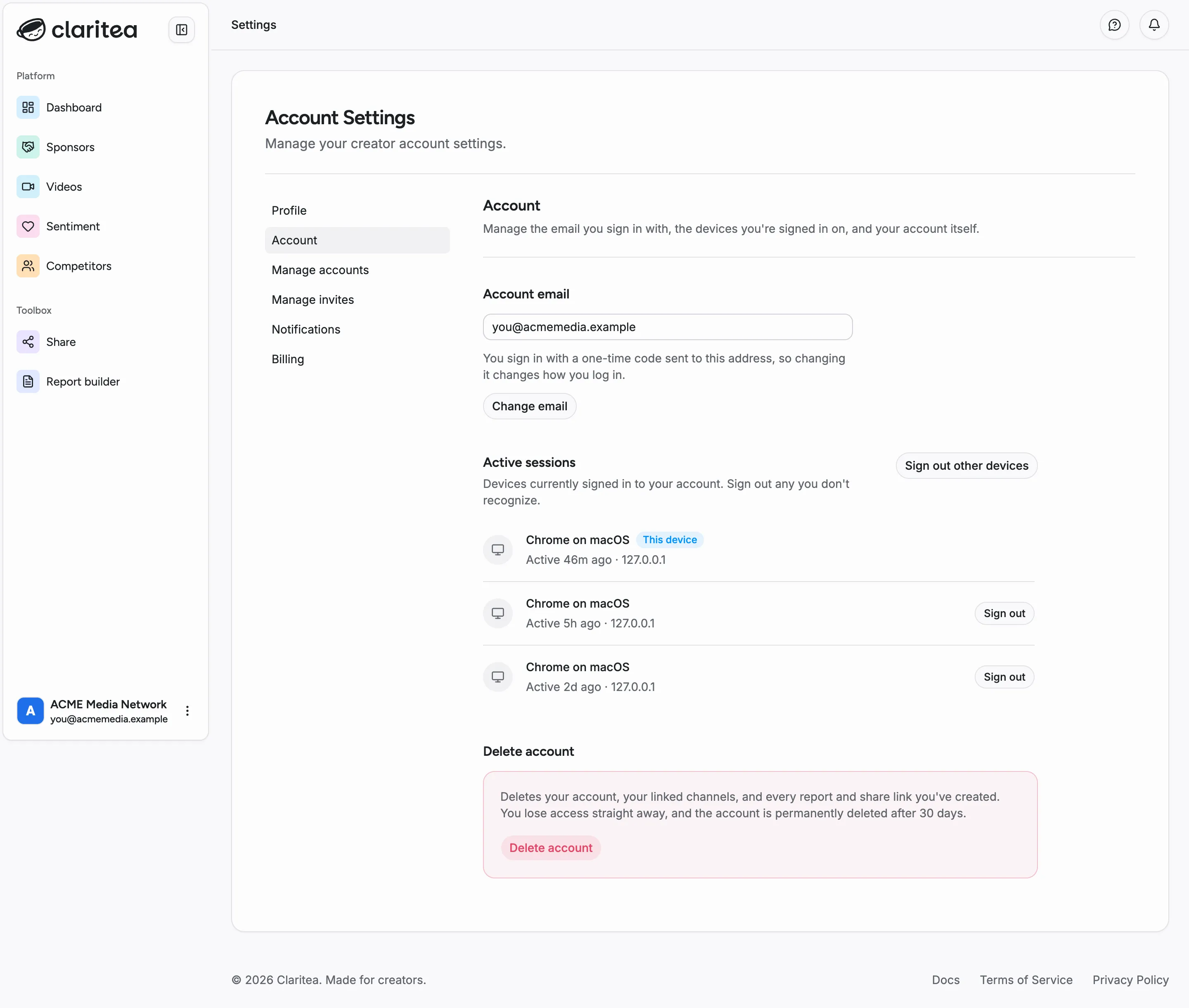
Account email
Section titled “Account email”You sign in with a one-time code sent to your email address, so changing the address changes how you log in. Select Change email, enter the new address, and confirm it with the code Claritea sends there. The change only takes effect once that code is confirmed, so a typo cannot lock you out of your own account.
Active sessions
Section titled “Active sessions”Every device currently signed in to your account, with when it was last active. The one you are using is marked This device.
Select Sign out beside any session you do not recognize. The session you are currently using has no such button, so you cannot sign yourself out by accident; use Sign out other devices to end every session except this one. That is the fastest thing to do if you think someone else has access to your account.
Delete account
Section titled “Delete account”Delete account removes your account, your linked channels, and every report and share link you have created. Anyone holding one of your share links loses access.
Claritea emails you a confirmation link rather than acting immediately, and that link expires after 10 minutes. Nothing is deleted until you follow it, so closing the dialog leaves your account exactly as it was.
After you confirm, your account is scheduled for permanent deletion in 30 days. Contact support within those 30 days if you change your mind. After that it cannot be recovered.
Manage accounts
Section titled “Manage accounts”This page lists every channel connected to your account, grouped by platform, with each channel’s video count.
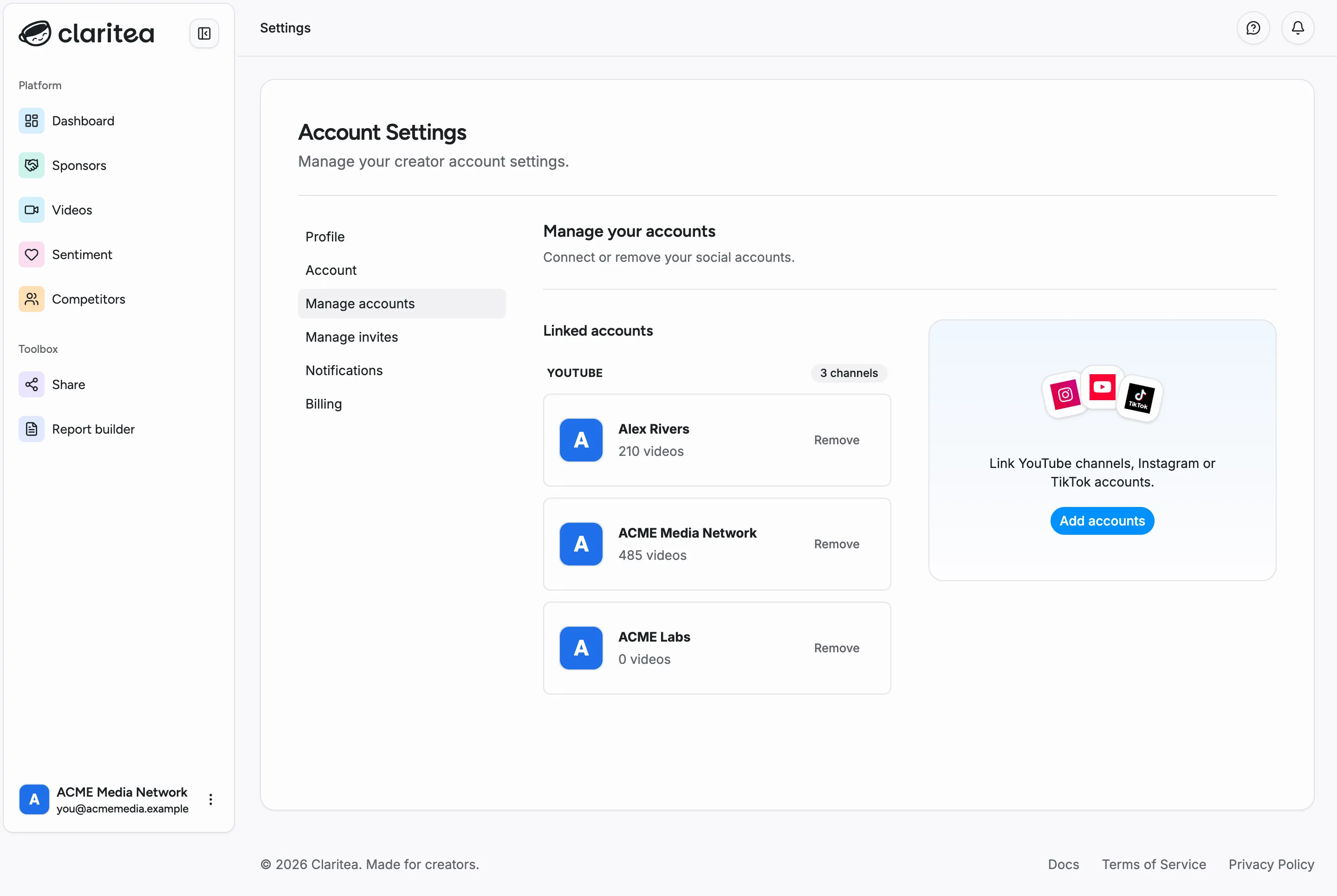
- Add accounts connects another channel: sign in with the Google account that owns it and approve access, then pick the channel to link
- Remove disconnects a channel and its data from your account
Connecting more than one channel is what turns your dashboard into a network view: a channel filter appears in the filter bar above your widgets, your totals add up across every channel you have selected, and pages like Sponsors and Videos cover all of them at once.
You need at least one connected account to use the dashboard. If you ever remove them all, a warning on this page asks you to connect one to get back to your dashboard.
If someone has invited you to view their channels, those appear here under Shared with you, where you can leave a shared channel at any time. See Inviting viewers.
Manage invites
Section titled “Manage invites”The Manage invites tab is where you give other people read-only access to your live dashboards - and manage the invites and viewers you have already added. This is separate from sharing a sponsor report; see Inviting viewers for the full walkthrough.
Notifications
Section titled “Notifications”Choose how you want to be notified. Currently you can toggle the Data ready email, which tells you when your channel analysis is complete.