Your dashboard
The dashboard is your home view: a summary of your channel and its sponsor activity.
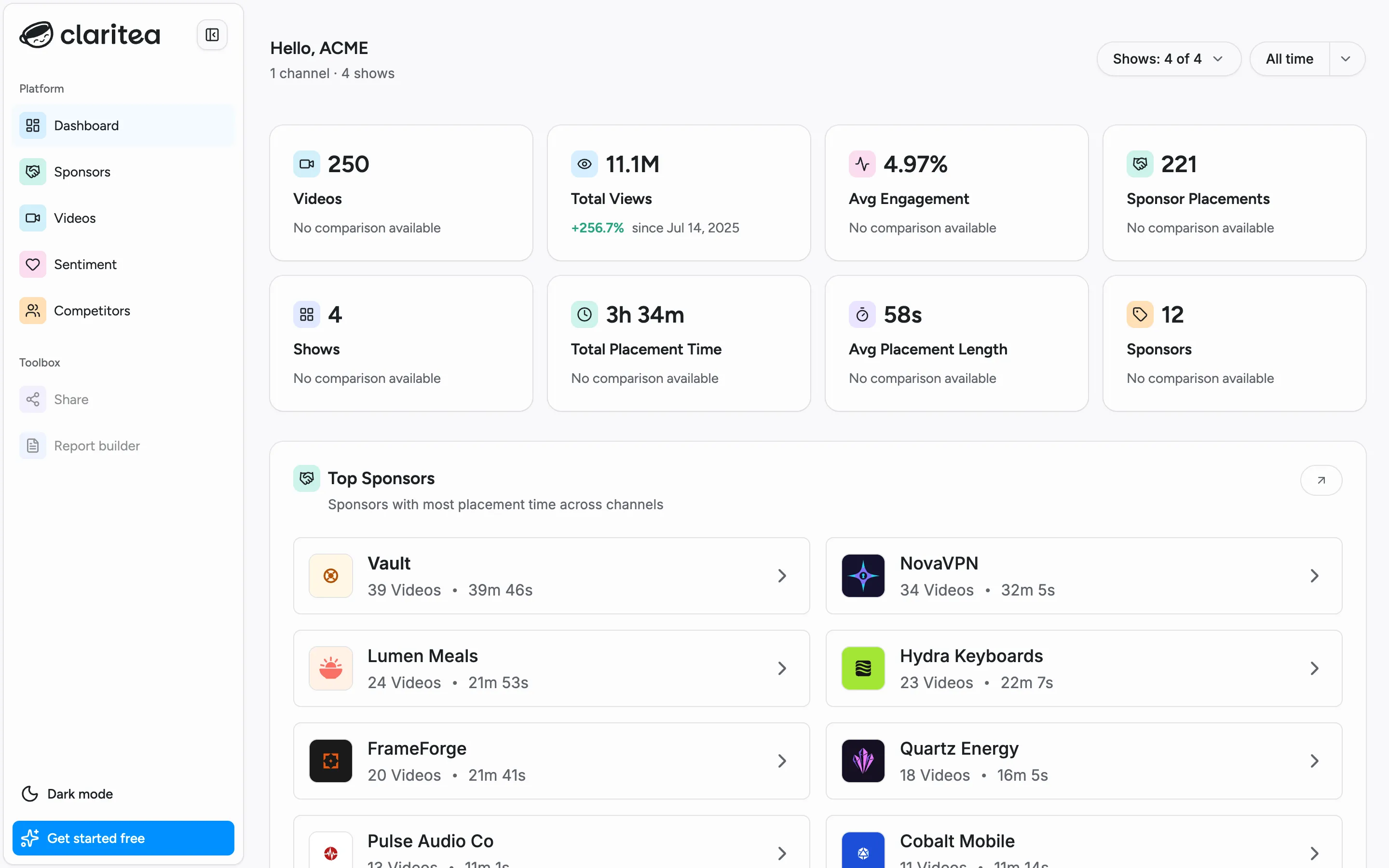
Reading the overview
Section titled “Reading the overview”The stat cards at the top summarize your channel for the selected period: videos published, views, and sponsor activity. Below them, widgets break down your sponsors, recent videos, and audience sentiment.
Choosing a date range
Section titled “Choosing a date range”Use the date-range picker at the top right to change the period every widget reports on. Pick a preset - 7 days, 30 days, 90 days, 1 year, or all time - or select your own start and end dates on the calendar. All numbers on the page update together, so you are always comparing like with like. All time is the default.
Filtering by channel
Section titled “Filtering by channel”If you have more than one channel connected, use the channel filter next to the date-range picker. It lists each of your channels with a checkbox - everything on the page reflects the channels you have checked, and the button shows your current selection (for example, “Channels: 2 of 3”).
All channels are included by default. Uncheck channels to focus on a subset, or narrow down to a single channel - there is no separate dashboard per channel; it is all one view filtered to your selection. The same channel and date filters also apply to the sponsors and videos pages.
When data is still processing
Section titled “When data is still processing”Right after connecting a channel, some widgets may be empty while Claritea analyzes your videos. They fill in automatically as processing completes, with no action needed from you.