Report builder
The report builder turns your data into spreadsheet files you can send to a sponsor, drop into your own analysis, or archive. You pick exactly which columns each file contains.
Setting up a report
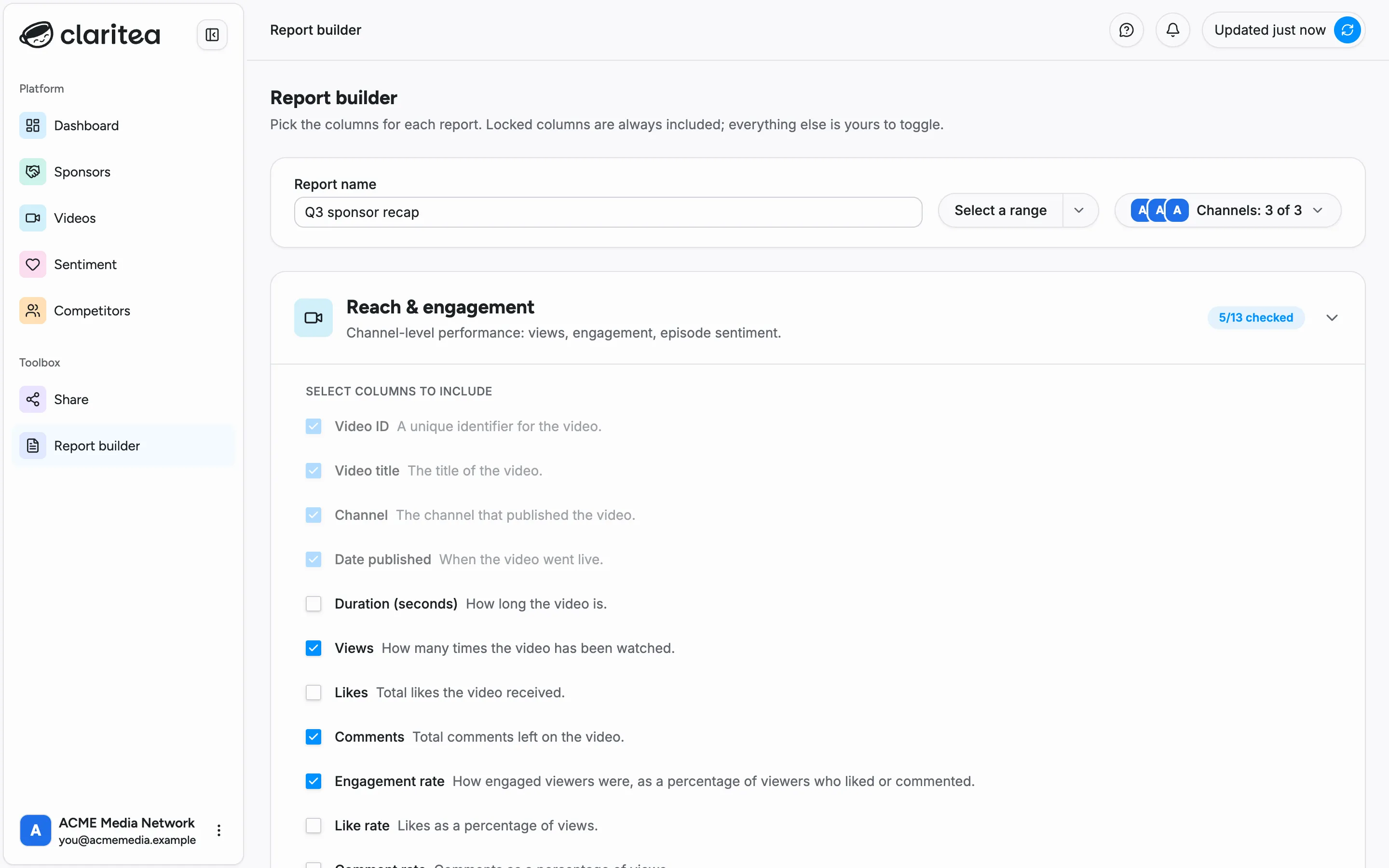
Section titled “Setting up a report”Give the report a name, pick a date range on the calendar, and choose which channels to include. If you have more than one channel connected, the channel picker works the same way as on the dashboard.
Choosing columns
Section titled “Choosing columns”A report can produce up to four files:
- Reach & engagement: channel-level performance per video - views, likes, comments, engagement rates, placement counts, episode sentiment
- Sponsor performance: one row per brand - placement totals, first and last seen, promo codes and URLs
- Audience reaction: how viewers responded to each brand on each video
- Audience comments (Pro): a separate file with every individual comment - author, full text, sentiment label, and like count. Turn it on with the Include audience comments toggle
The first three are column sections: locked columns (like the video or brand identifiers) are always included so every file stays usable on its own, and everything else is yours to toggle - each column comes with a plain-language description of what it contains.
Columns marked Pro cover sentiment depth - net sentiment, approval rates, and sentiment breakdowns - and are available on the Pro plan.
The footer keeps a running count of the data points and files your selection will produce.
Generating and downloading
Section titled “Generating and downloading”Select Generate report and Claritea assembles the files for your date range and channels. A dialog shows each file with its column and row counts; select Download all to save them. Sections with nothing to report for the selected window are left out, and the dialog tells you when that happens.
The output is CSV - plain spreadsheet files that open in Excel, Google Sheets, or anything else that reads tabular data.