Inviting viewers
You can invite someone - an employee, an agency, a collaborator - to view your channels inside Claritea. They sign in with their own account and browse your live dashboards, read-only, for the channels you choose to share.
This is different from sharing a report. A shared report is a fixed snapshot of one sponsor, behind a link that anyone can open. Inviting a viewer is a standing relationship with a specific person who works in the live dashboards themselves.
| Share a report | Invite a viewer | |
|---|---|---|
| What they get | A read-only report for one sponsor | Your live dashboards for whole channels |
| Who they are | Anyone with the link, no account needed | A specific person, signed in to their own account |
| How fresh | A snapshot from when you shared it | Live - updates as your data does |
| How long | Expires on the date you set | Stays until you revoke it or they leave |
Inviting someone
Section titled “Inviting someone”Open Settings from behind your name in the bottom-left corner, then go to the Manage invites tab. (The tab is available once you have a channel of your own to share.)
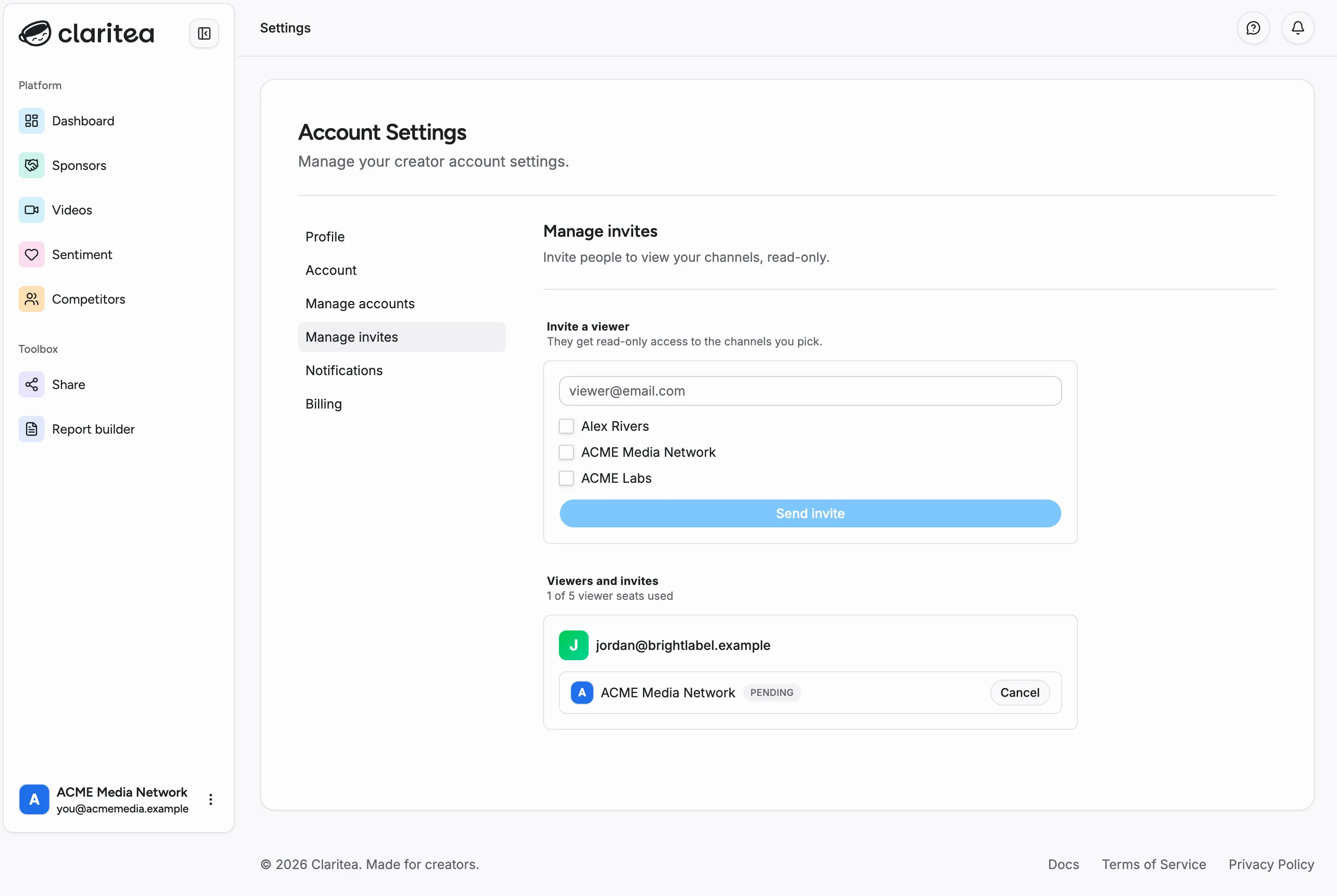
- In Invite a viewer, enter the person’s email address.
- Choose which of your channels to share - they get read-only access to the ones you pick. If you only have one channel, it is shared automatically.
- Select Send invite.
Claritea emails them an invitation. Until they accept, the invite shows as pending.
How many viewers you can invite depends on your plan. Viewers and invites shows how many seats you have used (for example, “1 of 5 viewer seats used”).
Managing viewers and invites
Section titled “Managing viewers and invites”Viewers and invites on the same page lists everyone you have shared with - one row per person, folding together their pending invites and active access. From here you can:
- Cancel an invite that has not been accepted yet
- Revoke access to any channel a viewer already has - each channel has its own control, so you can pull back one channel while leaving the rest
Revoking takes effect immediately: the person loses access to that channel the next time they load it.
What a viewer can and cannot do
Section titled “What a viewer can and cannot do”A viewer sees your dashboards exactly as they are, at the same depth of data your plan provides. They get the full read-only picture - overview, sponsors, videos, sentiment - for the channels you shared.
They cannot change anything that is yours. A banner at the top of the shared view marks it as read-only, and the owner-only controls are hidden: a viewer cannot refresh your data, share reports, build reports or export, or manage your connected channels. Their view is kept separate from their own account’s data, so nothing of yours mixes into anything of theirs.
Accepting an invite
Section titled “Accepting an invite”If someone invites you, you receive an email with a link. Opening it shows who invited you and which channels they shared.
Accepting is passwordless and does not require you to type your email - Claritea already knows it from the invite:
- Claritea emails a 6-digit code to the invited address.
- Enter the code to sign in.
- Select Accept invitation.
You land on the channel that was just shared with you. If you are already signed in with the invited email, you skip straight to accepting. If the invite was sent to a different address, or it has expired or been cancelled, the page tells you.
Switching between your own and shared dashboards
Section titled “Switching between your own and shared dashboards”Once you have access to channels shared with you, a network switcher in the sidebar lets you move between your own dashboards and the ones shared with you. Channels shared by the same person are grouped together, with the usual channel filter across them.
If you were invited but do not run your own channel, Claritea takes you straight to the shared dashboard - there is no setup to do.
The channels shared with you are also listed under Shared with you on the Manage accounts tab, where you can leave a shared channel at any time. Leaving removes it from your view; the owner can always invite you again.